
A native macOS menu-bar clipboard manager. Records every text, image, and file you copy into a local SQLite database — re-paste any of them with a hotkey, a click, or a terminal command.
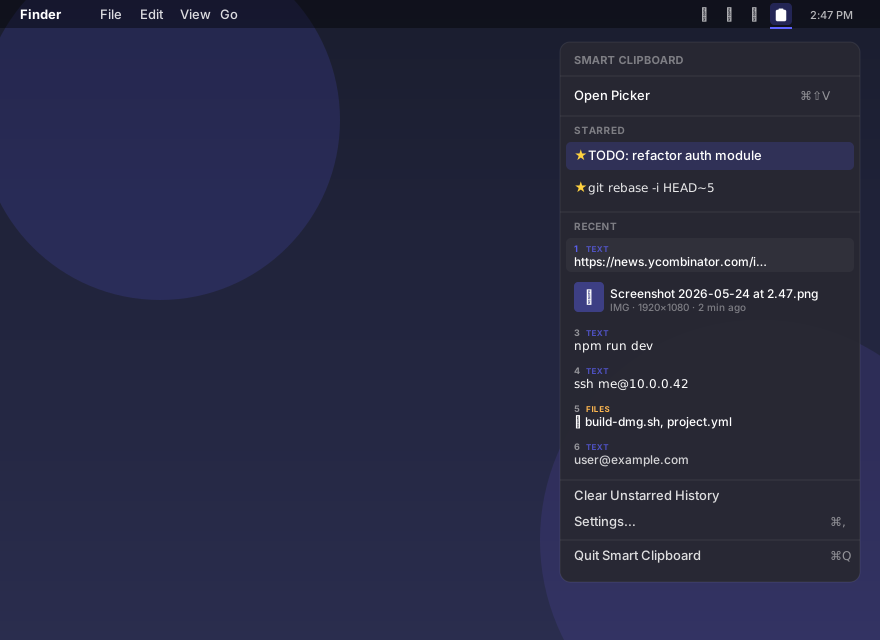
Status-item dropdown with starred items, recent items (top 9 get ⌘1–⌘9), and image thumbnails inline.
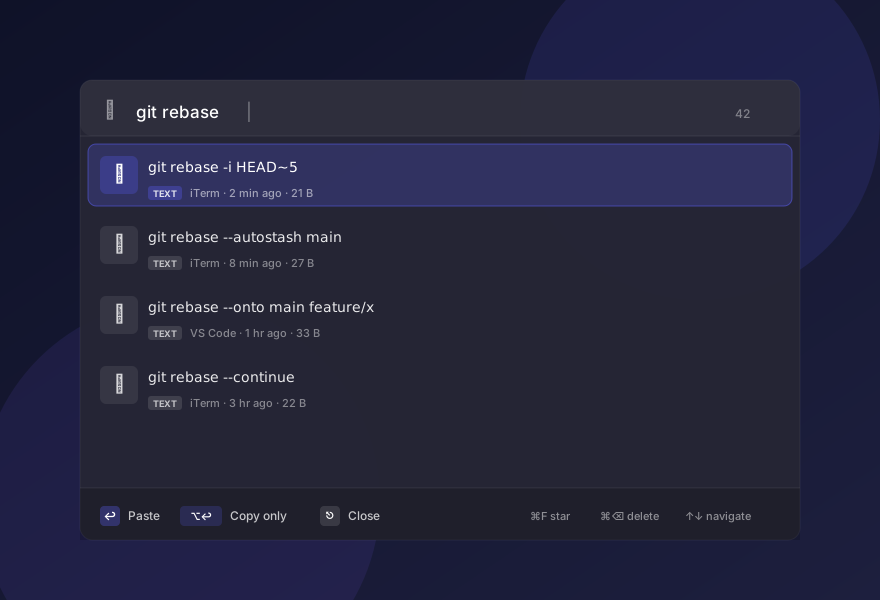
Press ⌘⇧V anywhere to open the picker. Type to search (SQLite FTS5), arrows to navigate, Enter to paste.
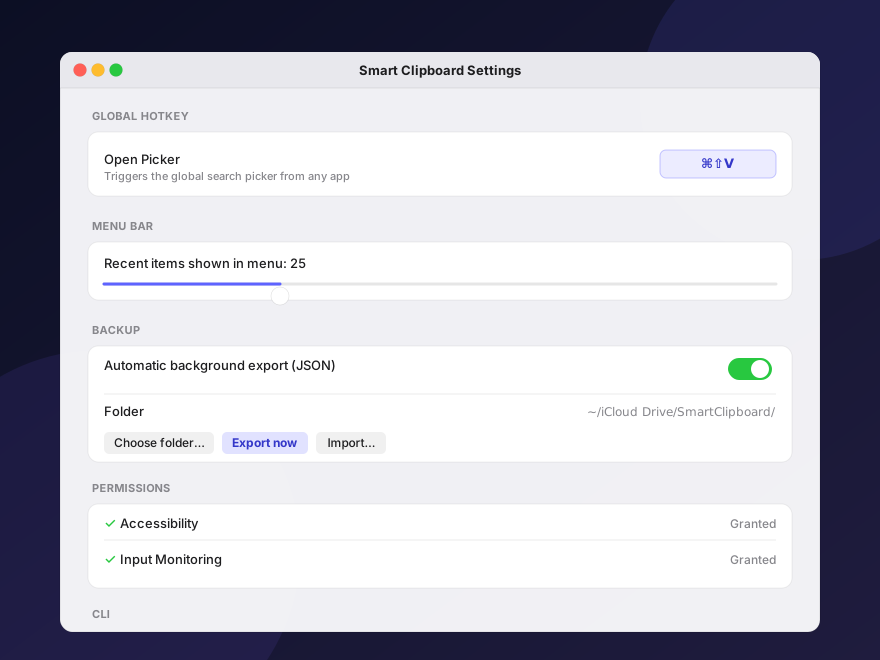
Rebind the hotkey, choose a backup folder (point at iCloud / Dropbox / Drive), check permission status, and install the CLI from one place.

One Swift process. Pasteboard polling + Carbon hotkey + URL-scheme CLI all feed a single GRDB-backed SQLite store.
Tiny binary, native widgets, no Electron, no background daemon, no telemetry. Everything stays on your machine.
Polls NSPasteboard every 500 ms. Captures plain text, images (PNG-encoded with thumbnails), and Finder file references.
SQLite FTS5 virtual table indexes every text snippet and file path. Search-as-you-type stays fast with thousands of entries.
Default ⌘⇧V (rebindable). Spotlight-style search; ↩ pastes into the previously focused app, ⌥↩ copies only.
Starred entries appear in their own menu-bar section. They're excluded from any clear-history operation.
clip CLI for terminal useclip list, clip search foo, clip 3 to paste the 3rd item. Implemented via the smartclipboard:// URL scheme — no extra daemon.
Point the streamed JSON export at any folder. Pick one inside iCloud Drive, Dropbox, or Google Drive for free cloud sync.
Native Swift/SwiftUI, no helper daemons, no menu-bar swarm. Storage is a single SQLite file you can back up with cp.
Every line of code is in the repo. Build from source yourself, or download the signed DMG release.
Download the DMG, drag to Applications, grant two permissions. That's it.
Downloads the latest DMG, copies the app into /Applications, removes the macOS quarantine flag, and launches it. No Gatekeeper dialog.
curl -fsSL https://raw.githubusercontent.com/tech-sumit/SmartClipboard/main/scripts/install.sh | bashGrab SmartClipboard-x.y.z.dmg from the latest release on GitHub.
Open the DMG and drag Smart Clipboard into the Applications shortcut.
Because the DMG isn't notarized, macOS shows "Apple could not verify…" on first launch. See the box below for the bypass on your macOS version.
/Applications → Open → Open in the dialog.xattr -dr com.apple.quarantine /Applications/SmartClipboard.app
open /Applications/SmartClipboard.appYou'll need Xcode 14+ and XcodeGen.
# clone, generate the Xcode project, open in Xcode
brew install xcodegen
git clone https://github.com/tech-sumit/SmartClipboard.git
cd SmartClipboard
xcodegen generate
open SmartClipboard.xcodeproj   # then ⌘R
Or fully from the command line:
xcodebuild -project SmartClipboard.xcodeproj \
           -scheme SmartClipboard \
           -configuration Release \
           -derivedDataPath .build build

cp -R .build/Build/Products/Release/SmartClipboard.app /Applications/
open /Applications/SmartClipboard.appSmart Clipboard asks for exactly what it needs, and the picker still works (partially) if you say no.
| Permission | Used for | When you'll see the prompt | If you deny |
|---|---|---|---|
| Accessibility | Synthesizes ⌘V into the focused app when you press Enter in the picker. Uses CGEventPost. |
You click Request in Settings → Permissions, or paste-on-Enter is attempted for the first time. | The picker still restores items to the clipboard — you press ⌘V yourself. |
| Input Monitoring | The global ⌘⇧V hotkey. Uses Carbon's RegisterEventHotKey. |
First time the hotkey fires after launch. | The hotkey won't fire; menu bar and CLI still work fully. |
| No Full Disk Access | — | — | Not requested. The app only reads/writes its own Application Support folder. |
Click the menu bar, press a hotkey, or use the CLI. Same database under the hood.
Click the clipboard glyph in the menu bar to see starred items (always pinned) and the most recent items. Clicking an item restores it to the clipboard and pastes it into the app you were just using.
Press ⌘⇧V anywhere. A floating non-activating panel appears with a search field. The app you came from keeps keyboard focus, so when you press Enter the paste lands in the right place.
clip
Install the CLI from Settings → CLI → Install. It creates a symlink at
/usr/local/bin/clip (or ~/bin/clip if the former isn't writable).
| Command | What it does |
|---|---|
clip | Open the picker (same as ⌘⇧V). |
clip list | Print the 50 most recent items as INDEX ID ★ PREVIEW. |
clip search QUERY | Print recent items matching QUERY (FTS5 prefix match). |
clip N | Paste the Nth most recent item into the current terminal. |
clip id <ID> | Paste the item with the given database ID. |
clip copy N | Copy the Nth item to the clipboard without pasting. |
clip help | Show this help. |
Smart Clipboard is a single LSUIElement Swift app. There's no helper daemon, no IPC layer, no background launchd job — just a polling loop and a database.
A background DispatchSourceTimer reads NSPasteboard.changeCount every 500 ms. When it changes, the new payload (text, image, or file URLs) gets read and inserted into SQLite via GRDB.swift.
If the new payload is byte-equal to the most recent row, the existing row's created_at is bumped instead of inserting a duplicate. Self-writes (when Smart Clipboard restores an item) are suppressed by a fingerprint check.
A SQLite FTS5 virtual table mirrors the preview and text_content columns. Queries split on word boundaries and append * for prefix matching, so search stays sub-millisecond at any size.
To paste an item, Smart Clipboard writes the payload back to NSPasteboard.general, activates the previously focused app, polls for isActive for up to 200 ms, then synthesizes ⌘V via CGEventPost.
The global ⌘⇧V is registered with Carbon's RegisterEventHotKey — same API native macOS apps have used for two decades. Rebinding from Settings unregisters and re-registers.
The clip command is a tiny shell script that runs open "smartclipboard://paste?id=…". The main app handles the URL via application(_:open:), so there's no separate daemon or socket to manage.
Auto-backup is streamed: rows are read 50 at a time from SQLite and written incrementally to a temp file, then atomically renamed. Even with thousands of multi-megabyte images, peak memory stays small.
Everything is in ~/Library/Application Support/SmartClipboard/clipboard.sqlite (WAL mode). Settings live in UserDefaults. No network calls, ever.
There's no Google account to link, no OAuth dance. Pick a folder that's already syncing to the cloud and Smart Clipboard writes to it.
Settings → Backup → Export Now writes
smartclipboard-backup.json to your chosen folder.
Import… appends a previously-exported file to the current DB.
When enabled, Smart Clipboard rewrites the JSON file 30 seconds after the last clipboard change (debounced). The write is streamed and atomic, so partial files never appear.
| Service | Folder to choose |
|---|---|
| iCloud Drive | ~/Library/Mobile Documents/com~apple~CloudDocs/SmartClipboard/ |
| Dropbox | ~/Dropbox/SmartClipboard/ |
| Google Drive (desktop app) | ~/Google Drive/My Drive/SmartClipboard/ |
| OneDrive | ~/Library/CloudStorage/OneDrive-Personal/SmartClipboard/ |
preview string for the menu.~/Library/Application Support/SmartClipboard/.org.nspasteboard.ConcealedType / TransientType are not
filtered in v1. Use Settings → Data → Clear unstarred to prune, or open
the SQLite file with any tool and delete specific rows.
The release DMG is signed with an ad-hoc identity, not an Apple Developer ID + notarization. macOS Gatekeeper refuses unnotarized apps on first launch.
The easy fix — use the one-line installer at the top of Install; it removes the quarantine flag for you.
Manual bypass — on macOS 14 Sonoma, right-click → Open. On macOS 15 Sequoia, you have to go to System Settings → Privacy & Security and click Open Anyway. From the terminal: xattr -dr com.apple.quarantine /Applications/SmartClipboard.app works on every version.
A notarized DMG (no warning at all) is on the roadmap and requires a paid Apple Developer Program membership.
The picker panel is configured with collectionBehavior including .fullScreenAuxiliary and .canJoinAllSpaces, so it floats above any full-screen window. If it doesn't appear, ensure Smart Clipboard has Input Monitoring permission (System Settings → Privacy & Security → Input Monitoring) so the hotkey can fire at all.
That requires Accessibility permission (so Smart Clipboard can synthesize ⌘V). Open Settings → Permissions in Smart Clipboard, click Request, then enable the toggle in System Settings. Restart Smart Clipboard once.
Yes — they don't conflict at the system level. Just make sure your global hotkey isn't claimed by another app; ⌘⇧V is also Raycast's clipboard-history default, for example. Rebind whichever you prefer.
~/Library/Application Support/SmartClipboard/clipboard.sqlite (plus -wal and -shm sidecar files from SQLite WAL mode). You can sqlite3 it directly to inspect or query.
Quit the app (menu bar → Quit Smart Clipboard), drag /Applications/SmartClipboard.app to the Trash, then delete:
~/Library/Application Support/SmartClipboard/~/Library/Preferences/com.shailka.SmartClipboard.plist/usr/local/bin/clip (if you installed the CLI)Remove the entries from System Settings → Privacy & Security → Accessibility and … → Input Monitoring.
v1 stores plain text only. Rich-text capture (preserving formatting from browsers and word processors) is on the v2 roadmap — it requires more careful pasteboard-type handling to avoid pasting a styled blob into a terminal.
Today: point auto-backup at an iCloud Drive / Dropbox / Drive folder on both Macs and run Import… when you want to merge. Native CloudKit sync of starred items is on the v2 roadmap.
It stays entirely on-device, makes zero network calls, and the only API capabilities it uses (NSPasteboard, Carbon hotkey, Accessibility for paste) are visible in the app sandbox/entitlements. That said: the database is unencrypted at rest and captures everything, including secrets. Review with your security team before deploying on an enterprise fleet.
v1 is intentionally small and self-contained. These are the upgrades on the table.
Native cross-Mac sync of starred items via iCloud. No folder trickery required.
Optional AES-encrypted SQLite database with a passphrase, for storing sensitive copies.
Opt-in to honor org.nspasteboard.ConcealedType from 1Password, Bitwarden, etc.
Preserve RTF/HTML formatting from browsers and word processors.
Group items into named collections; templated snippets with {{ placeholders }}.
Apple Developer-ID-signed and notarized release so first-launch needs no right-click.
 Smart Clipboard